<template> <div id=”app”> // 启动页内容开始 <div class=”wrap” v-if=”show”> <div class=”pic1″> <img src=”@/assets/images/pic1.png” /> <img src=”@/assets/images/pic2.png” /> <img src=”@/assets/images/pic3.png” /> </div> </div> // 启动页内容结束 <keep-alive> <router-view v-if=”$route.meta.keepAlive” /> </keep-alive> <router-view v-if=”!$route.meta.keepAlive” /> </div> </template> <script> export default { name: ‘App’, data() { return { show: false } }, mounted() { // 判断页面是首次加载还是刷新 if (window.performance.navigation.type === 1) { console.log(‘页面被刷新’) } else { // 首次加载的话显示启动页内容,设置延时器再取消显示 console.log(‘首次加载’) this.show = true setTimeout(() => { this.show = false }, 4000) } } } </script> <style lang=”scss” scoped> #app { height: 100%; } // 启动页样式 .wrap { width: 100vw; height: 100vh; background: url(‘~@/assets/images/bg.png’) no-repeat center top #fff; background-size: cover; box-sizing: border-box; overflow: hidden; position: fixed; z-index: 2; } .wrap .pic1 { position: relative; width: 100%; top: 48px; } .pic1 img { opacity: 0; width: 21%; position: absolute; left: 48px; animation-name: fadeIn; /*动画名称*/ animation-duration: 1s; /*动画持续时间*/ animation-iteration-count: 1; /*动画次数*/ animation-delay: 0s; /*延迟时间*/ animation-fill-mode: forwards; } .pic1 img:nth-child(2) { left: 128px; top: 48px; animation-name: fadeIn; /*动画名称*/ animation-duration: 1s; /*动画持续时间*/ animation-iteration-count: 1; /*动画次数*/ animation-delay: 1s; /*延迟时间*/ animation-fill-mode: forwards; } .pic1 img:nth-child(3) { left: 208px; top: 48px; animation-name: fadeIn; /*动画名称*/ animation-duration: 1s; /*动画持续时间*/ animation-iteration-count: 1; /*动画次数*/ animation-delay: 2s; /*延迟时间*/ animation-fill-mode: forwards; } @keyframes fadeIn { 0% { opacity: 0; /*初始状态 透明度为0*/ } 50% { opacity: 0; /*中间状态 透明度为0*/ } 100% { opacity: 1; /*结尾状态 透明度为1*/ } } </style>
月份:2020年10月
vue video全屏播放
需求:
1、视频为长方形,页面初始化打开为横屏全屏播放视频。
2、微信不支持自动播放,故自动播放需求删除。
方法:
1、vue-video-player插件
因需求较简单,仅要求播放本地一个视频,故未选择使用插件。
2、video
<div id="video_box" style="z-index: 999;" :class="{video_box_rotate: isIos}">
                <video
                    @click="videoPlay"
                    class="index_video"
                    poster="../assets/images/poster.jpg"
                    id="video_content"
style="object-fit:fill" /*加这个style会让 Android / web 的视频在微信里的视频全屏,如果是在手机上预览,会让视频的封面同视频一样大小
                    webkit-playsinline='true'
                    playsinline="true"
                    x5-playsinline="true"
                    x-webkit-airplay="true"
                    x5-video-player-type="h5"
                    x5-video-player-fullscreen="true" /*全屏播放*/
                    x5-video-ignore-metadata="true"
                    x5-video-orientation="landscape" /*播放器的方向,landscape横屏,portraint竖屏,默认值为竖屏*/
            preload="preload"> <source src="../../static/video.mp4" type='video/mp4; codecs="avc1.4D401E, mp4a.40.2"' > </video> </div>
具体属性解释可参考 https://blog.csdn.net/qq_16494241/article/details/62046891
同层H5播放器官网 https://x5.tencent.com/tbs/guide/video.html
注意:
x5-video-orientation="landscape" /*播放器支付的方向,landscape横屏,portraint竖屏,默认值为竖屏*/
landscape属性ios不支持
为兼容ios横屏将视频旋转90度
mounted() {
        if (是否为ios) {
            this.videoFullScreen();
        }
    }
methods: {
    // 视频宽高设置为手机宽高
        videoFullScreen() {
            let width = document.documentElement.clientWidth;
            let height = document.documentElement.clientHeight;
            document.getElementById('video_content').style.height = width + 'px';
            document.getElementById('video_content').style.width = height + 'px';
        },
    }
/*视频旋转*/
.video_box_rotate{

    transform rotate(90deg)
}
视频监听播放结束、进入全屏、退出全屏事件
mounted() {this.videoEnd()},
methods: {
    videoEnd(){
let video = document.getElementById(‘video_content’); video.addEventListener(‘ended’, () => { alert(‘video end’) });
  }; // 视频播放结束
}
// 全屏事件 x5videoenterfullscreen
// 退出全屏 x5videoexitfullscreen
监听手机横竖屏
window.addEventListener('orientationchange', function() {
                    // alert(window.orientation); // 这里可以根据orientation做相应的处理
                    if (window.orientation === -90) {
                        self.iphoneScreenShow = true;
                    } else {
                        self.iphoneScreenShow = false;
                    }
                }, false);
视频初始化黑屏
可以在视频上加个div浮层(可以一个假的视频第一帧),然后用timeupdate方法监听,视屏播放及有画面的时候再移除浮层。https://segmentfault.com/a/1190000009395289
视频进入全屏,退出全屏监听
https://segmentfault.com/a/1190000013232870
监听视频播放完成
https://blog.csdn.net/mondy592/article/details/81219167

参考资料 https://blog.csdn.net/xcy1193068639/article/details/80242111#commentsedit

安卓去掉控制按钮 参考http://www.xyhtml5.com/3252.html

欢迎大家指点,谢谢
转载于:https://www.cnblogs.com/1032473245jing/p/10222448.html
在vue中写一段自适应屏幕代码,并在移动端判断横竖屏
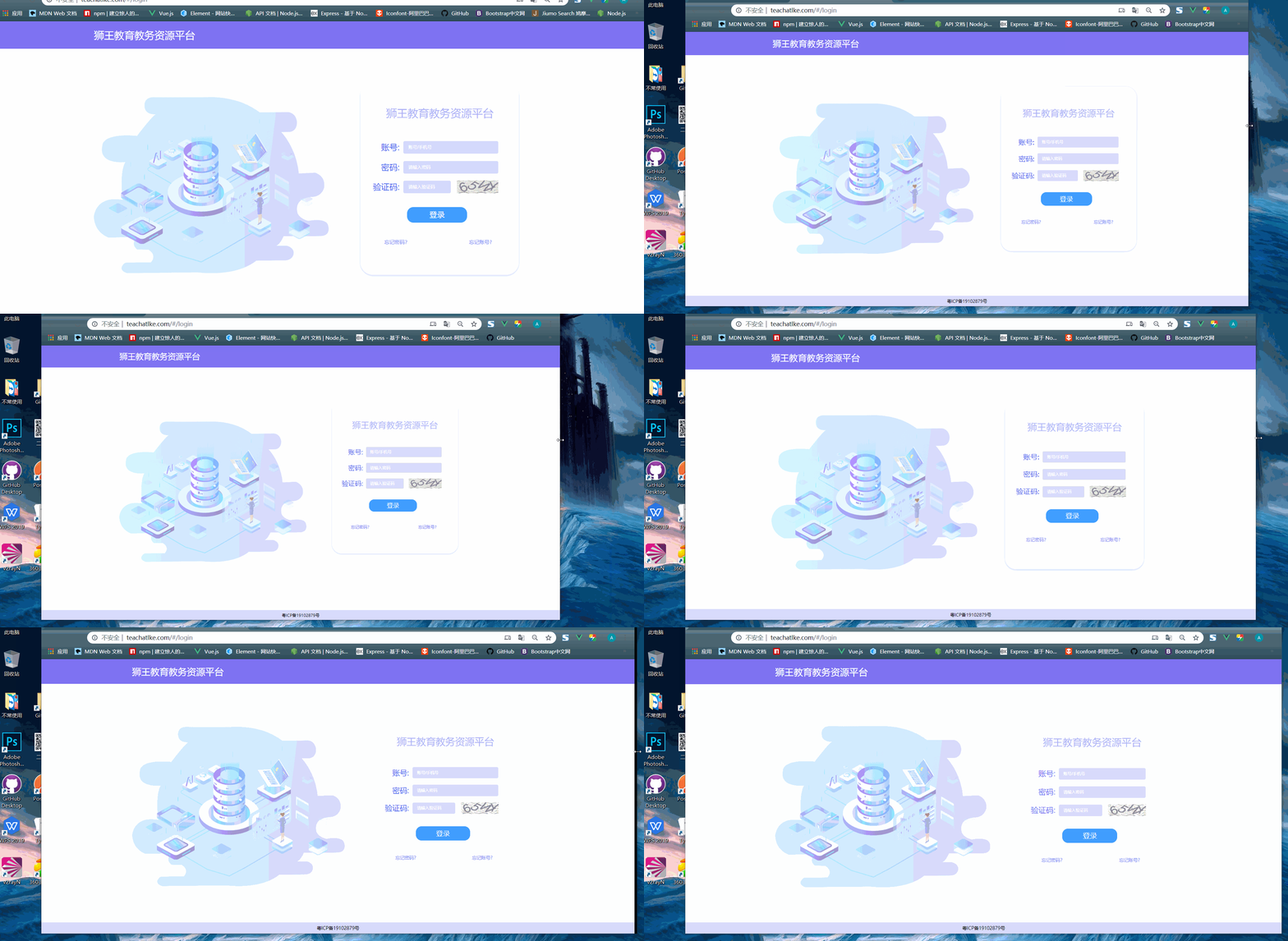
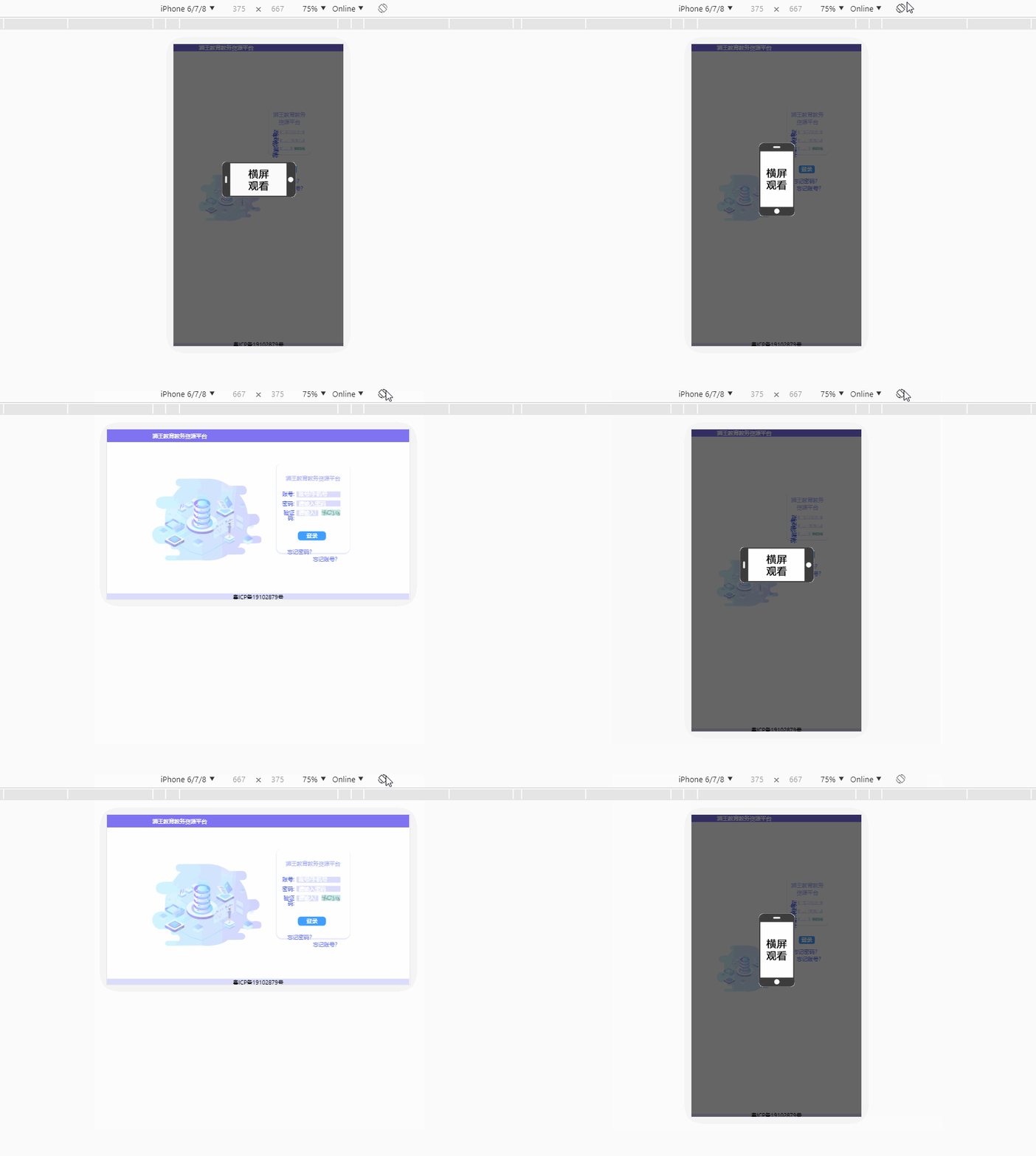
效果如下:
1.自适应
2.判断移动端横竖屏
只需在app.vue中写入如下代码
<template>
  <div id="app">
    // 注意! src的图片自己找一张gif图
    <div class="app-hint"
         v-if="isScreen"><img src="./assets/image/screen.gif"
           alt=""></div>
  </div>
</template>
<script>
export default {
  data() {
    return {
      screenWidth: document.body.clientWidth, // 网页可见区域宽
      screenHW: window.orientation, // 判断横竖屏
      isScreen: false // 横竖屏
    };
  },
  watch: {
    screenWidth(val) {
      // 为了避免频繁触发resize函数导致页面卡顿,使用定时器
      if (!this.timer) {
        // 一旦监听到的screenWidth值改变,就将其重新赋给data里的screenWidth
        this.screenWidth = val;
        this.timer = true;
        let that = this;
        setTimeout(function() {
          // 执行自适应代码
          that.bodyScale()
          // 打印screenWidth变化的值
          console.log(that.screenWidth);
          that.timer = false;
        }, 400);
      }
    },
    screenHW () {
      this.rotate()
    }
  },
  methods: {
    // 自适应代码
    bodyScale() {
      var devicewidth = document.documentElement.clientWidth; //获取当前分辨率下的可是区域宽度
      var scale = devicewidth / 1960; // 分母——设计稿的尺寸
      document.body.style.zoom = scale; //放大缩小相应倍数
    },
     // 判断横竖屏
    rotate () {
      if (this.screenHW == 180 || this.screenHW == 0) {
        console.log('竖屏')
        this.isScreen = true
      } else if (this.screenHW == 90 || this.screenHW == -90) {
        console.log('横屏')
        this.isScreen = false
      }
    }
  },
  created() {
    // 执行自适应代码
    this.bodyScale()
  },
  mounted () {
    // 监听窗口大小
    window.onresize = () => {
      return (() => {
        this.screenWidth = document.body.clientWidth;
        // 把横竖屏的变化赋值
        that.screenHW = window.orientation
      })()
    }
  }
};
</script>解决Redis之MISCONF Redis is configured to save RDB snapshots, but is currently not able to persist o
今天操作Redis的时候出现了MISCONF Redis is configured to save RDB snapshots, but is currently not able to persist on disk. Commands that may modify the data set are disabled. Please check Redis logs for details about the error.这提示及其友好,虽长但我喜欢,框架只返回result=2并且又没有api文档,然而我就懵逼了,你咋不上天,我就立马上服务器,使用command操作,嘿嘿问题来了就去
Redis问题
MISCONF Redis is configured to save RDB snapshots, but is currently not able to persist on disk. Commands that may modify the data set are disabled. Please check Redis logs for details about the error.
Redis被配置为保存数据库快照,但它目前不能持久化到硬盘。用来修改集合数据的命令不能用。请查看Redis日志的详细错误信息。
原因
强制关闭Redis快照导致不能持久化。
解决方案
将stop-writes-on-bgsave-error设置为no
127.0.0.1:6379> config set stop-writes-on-bgsave-error no